

.svg)
Product decisions backed by evidence, from Claude or ChatGPT
Ask a question in plain language and Usersnap returns the topics that matter, with sentiment scored against each one and every claim traced back to its source. Connect your live workspace to Claude, ChatGPT, Cursor or Perplexity in about five minutes.
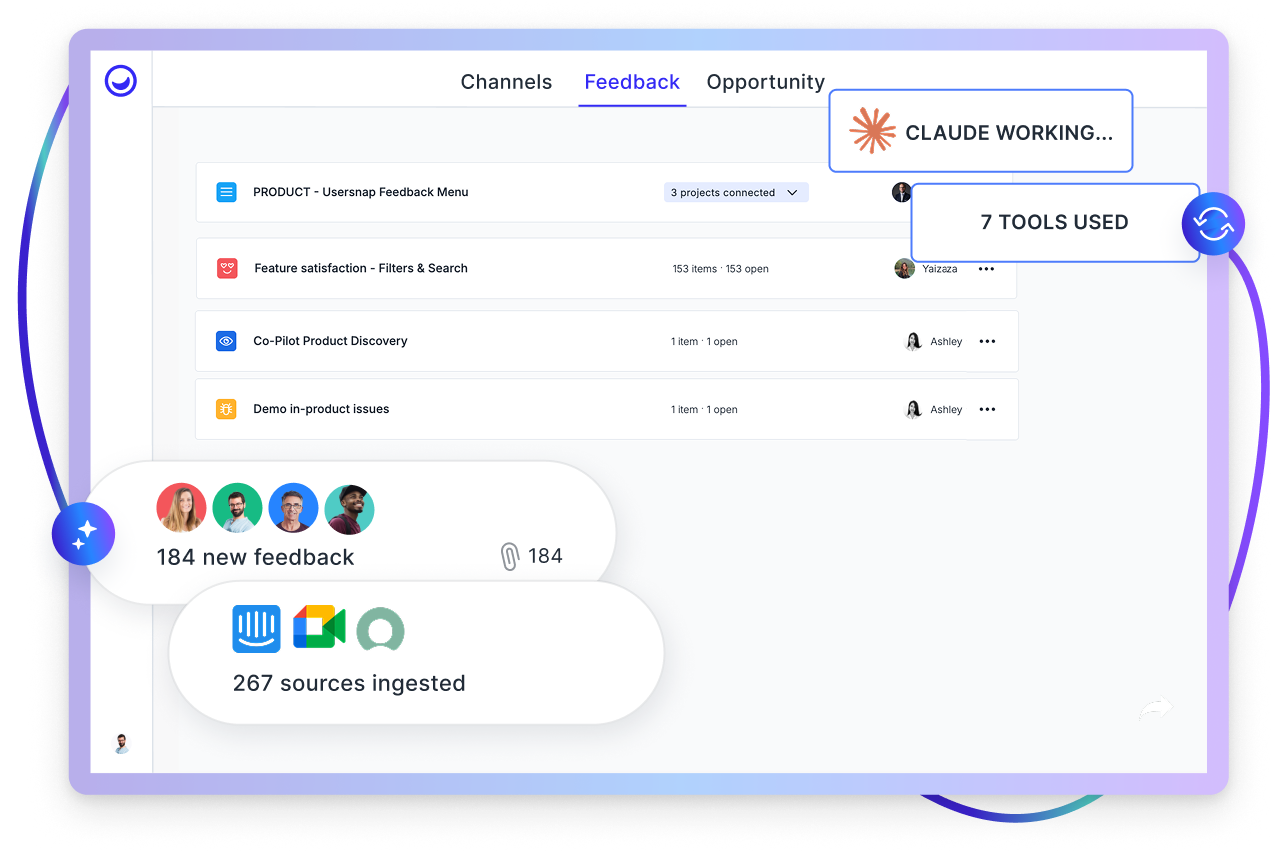
What is a customer feedback MCP server?
A customer feedback MCP server is an endpoint built on the Model Context Protocol that lets an AI assistant read product evidence from your system and act on what it finds. The Usersnap MCP server opens your live workspace to Claude, ChatGPT, Cursor and Perplexity. You ask a question in plain language, Usersnap returns the matching topics with sentiment scored against each one and example citations, and the assistant can create an Opportunity from what it surfaced. It reads your evidence and writes opportunities, without deleting anything.
Connectivity is your new superpower
The summary you get back is built on data that aged the moment it downloaded, and every follow-up means exporting again. Connected directly, the same question takes ten seconds and the answer is always current.


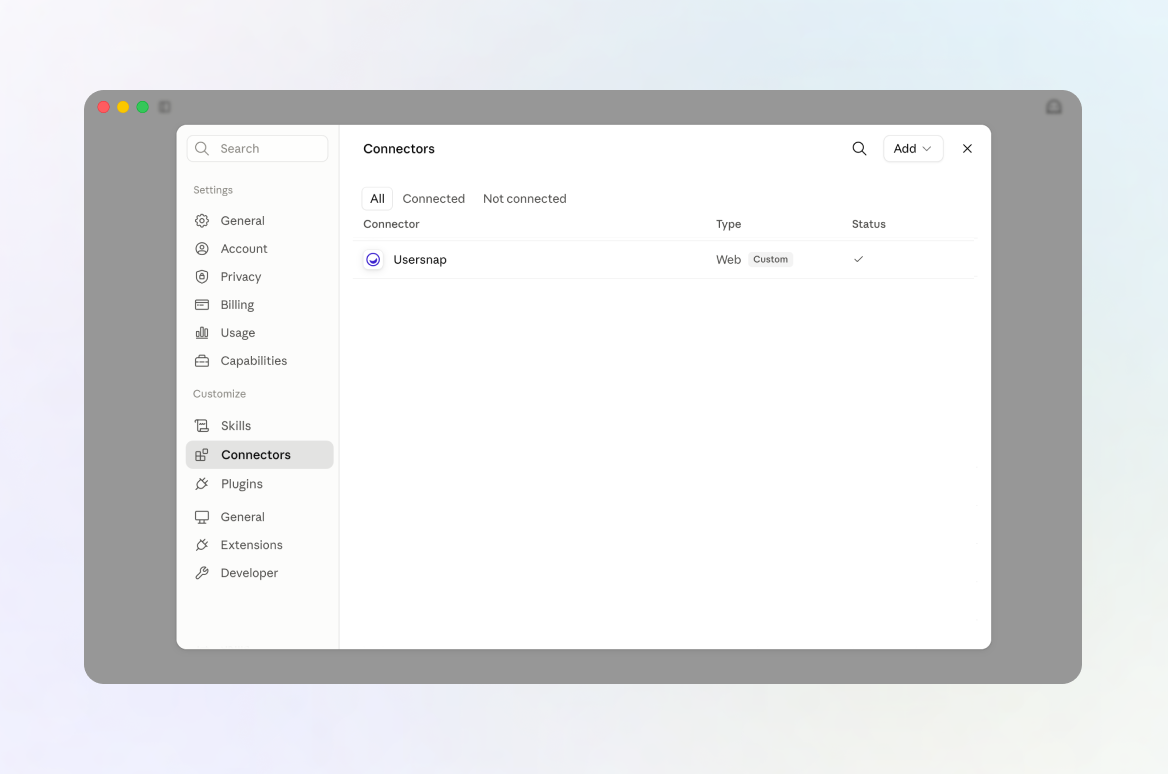
How the Usersnap MCP server works
Add the connector, sign in with Usersnap, approve the permissions. Then ask about a flow, a release or a month. Usersnap returns the matching topics with sentiment scored against each one, plus the quotes behind them.
What product managers actually ask it
There is no query syntax to learn. You ask the way you would brief a colleague, and the answer arrives with its evidence attached. These are the three questions product managers reach for first.
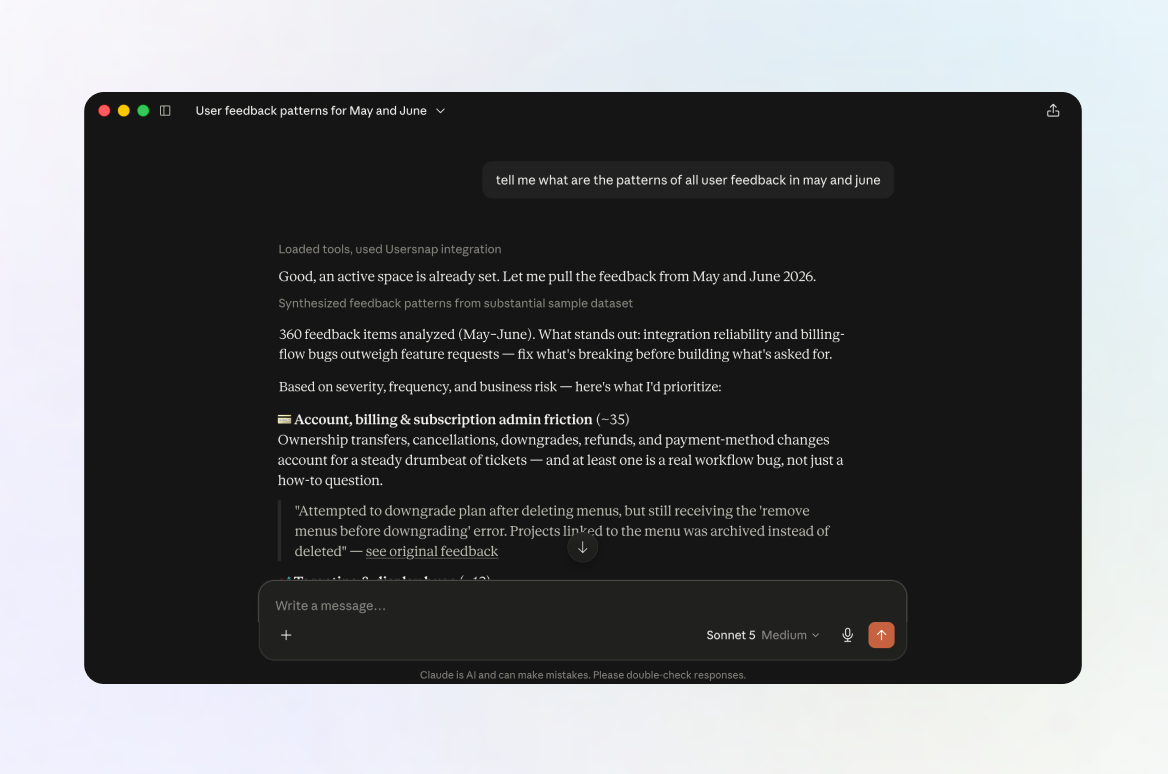
The Monday morning read
Ranked themes with a sentiment split, every citation linked to the item it came from. The export-and-scan version of this took half an hour.
Evidence next to behaviour
It calls Usersnap for the evidence and the user IDs, then Mixpanel for the behaviour. Friction mapped onto drop-off, with no manual join.
Writing the spec
The topic comes back with its sentiment and citations, and the opportunity lands on the board with the supporting evidence attached.
The fifteen tools the connector exposes
Read tools work within whichever space you have made active, so the assistant never reaches further than you point it. Every connector also has a tool permissions panel, so you can switch off the two write tools and leave it read-only.
| Tool | What it does | Access |
|---|---|---|
| Navigation | ||
| list_spaces | Lists the spaces you can view | Read |
| list_sites | Lists sites in a space, including their custom status labels | Read |
| list_company_users | Resolves a person's name to an assignee | Read |
| set_active_space | Pins the space every read tool then works within | Read |
| Evidence | ||
| search_feedback | Semantic search over content in the active space, for natural-language questions | Read |
| filter_feedback | Facet filter across state, priority, assignee, labels, ratings, dates, and topic paired with its own sentiment. Results carry topics, sentiment and analysis | Read |
| find_similar_feedback | Finds items semantically similar to one you already have | Read |
| get_feedback | Full detail for a single item, hydrated live, with a permalink | Read |
| Naming | ||
| search_labels | Fuzzy matches a label name so you can confirm it before filtering | Read |
| search_topics | Fuzzy matches a topic name, optionally paired with a sentiment | Read |
| Opportunities | ||
| check_opportunity_duplicate | Checks whether a similar opportunity already exists before one is created | Read |
| create_opportunity | Creates an Opportunity on the board, running a duplicate check first and asking for confirmation if it finds one | ★ Write |
| link_feedback_to_opportunity | Attaches supporting evidence to an existing opportunity | ★ Write |
The two starred capabilities are the ones that turn an answer into something the team can plan against. More on that below.
Sentiment scored per topic, not per item
Our Sentiment Sensor, included on Professional plans and above, scores sentiment against each topic, not the item as a whole, so the assistant reads analysis that already carries context instead of re-deriving it. Consistent between runs, and every claim cites its source.
What happens after the assistant finds something
Most MCP servers are read-only. They answer your question and stop there, which leaves the finding sitting in a chat window nobody else will read. Ours writes back.
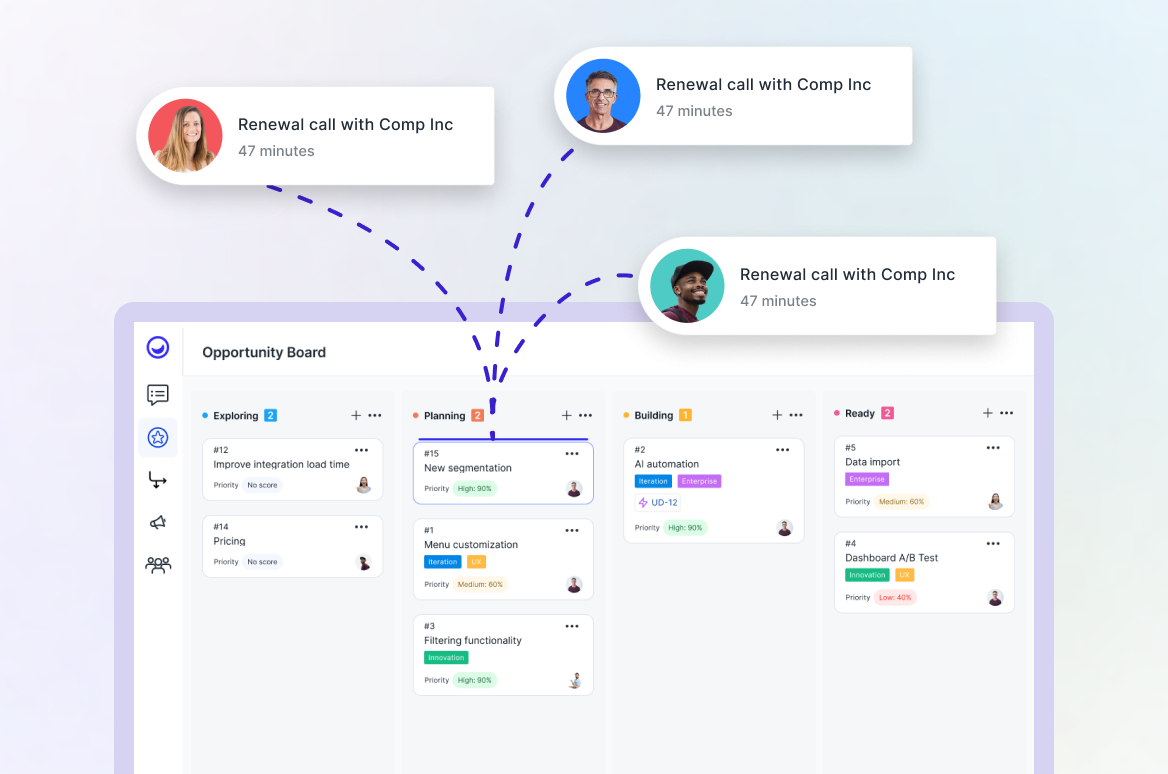
Create the opportunity
When a topic is worth building, the assistant creates an Opportunity on the board without you leaving the conversation. It checks for a similar one first and asks before adding a duplicate, so the board stays clean.
Attach the evidence
The supporting items are linked to it, so anyone reviewing the decision later can see exactly what it rests on.
It enters planning
The opportunity sits alongside everything else the team is weighing, on the same board used for prioritisation and reporting.
How to connect Usersnap to Claude
Setup runs about five minutes. You need a Claude account that supports connectors, which means claude.ai or the desktop app on a paid plan. ChatGPT, Cursor and Perplexity follow the same shape.
- Open your connector settings. In claude.ai or the desktop app, go to Settings, then Connectors.
- Click Add, then Add custom connector, and choose Usersnap.
- Paste the MCP URL: https://mcp.usersnap.com/mcp
- Sign in with Usersnap and approve the permissions in the login window.
- Usersnap appears in your connector list. Start a new chat and ask it something.
Want the assistant read-only? Open the Tool permissions section of the connector and switch off the write tools.
Five minutes to connect. Nothing to install, and no developer needed.
Start with your own evidenceWhat the AI can and cannot reach
It acts as you, with your permissions
The assistant sees exactly what your Usersnap account sees. It cannot reach another company's data, a project you do not have access to, or anything above your permission level.
Off until you switch it on
Access is enabled per company and rechecked on every single request, not once at login. Switch it off and access stops immediately.
Email addresses are stripped first
Reporter email addresses are stripped out before any data reaches the assistant.
Sign-in uses OAuth 2.1 with PKCE
The standard that blocks intercepted-login attacks. Only pre-vetted return destinations are accepted, and the identity stamp comes from a freshly verified login, so a copied one is rejected.
The engine is not reachable from the internet
The service doing the work sits behind Usersnap's own edge. Outside traffic reaches it through the authenticated front door or not at all.
Writes are logged and de-duplicated
Every opportunity created and every item linked is recorded in an internal audit trail. Repeat the same request and you will not get a duplicate.
Questions about the Usersnap MCP server
Which AI assistants work with the Usersnap MCP server?
Any assistant that supports the Model Context Protocol. That covers Claude, ChatGPT, Cursor and Perplexity today. For Claude, custom connectors are available on paid plans through the web app or the desktop app.
Can the AI access all of my company's data?
Only what you can already see. The connector acts with your existing permissions and cannot reach data, projects or workspaces you don't have access to.
Can the AI edit or delete anything?
No. It reads your evidence and it creates opportunities when you ask it to. Editing and deleting raw items are not available to it.
Is my customer data shared with other companies or used to train AI models?
No. The assistant only reaches your company's data while handling your request. Email addresses are removed before anything is sent, and your data is never mixed with another company's.
What happens if I disable the MCP connector?
Access is checked on every request, so the moment you switch it off for your company the assistant loses access to your workspace.
Does it work with my historical data?
New data is indexed automatically. For everything before that, our Customer Success team can index your back catalogue on request.
Why not just paste the raw data into ChatGPT?
You can, and plenty of teams do. Three things break down once you rely on it.
The data goes stale on export. Every follow-up question means another CSV, and the answer you got on Tuesday no longer matches Thursday's inbox.
The answer moves around. Paste 400 raw items into a chat and the model decides what matters on the fly, so the same question next week returns a differently shaped answer. Scoring sentiment against each topic first means the assistant reads the same structured input every time.
There is no way back to the evidence. A pasted summary cannot be traced. When someone asks which customers said this, you are back in the spreadsheet.
How long does setup take, and do I need a developer?
About five minutes, and no. Add the connector, paste the URL, sign in with Usersnap, approve the permissions.
Is there a free MCP server for customer feedback?
The Usersnap MCP server is free on every plan during public beta, including the free plan. There is no separate charge for the connector.
“Usersnap has shortened our customer support cycle. Visual feedback really helps us understand and iterate faster.”
.webp)


“Beta users report what they think is broken, when in fact it could be the feature not working as they expected. This helps us understand why the product is not satisfactory.”


“How to bring value to the end users is what the teams thrive for. And Usersnap helps us get the feedback and evidence we need to keep moving.”

.svg)
“Usersnap gives us insights on our users’ pain points, top requests, and use cases. It helps us to prioritize new features and figure out how to best provide value for Tango users.”
.webp)
.webp)